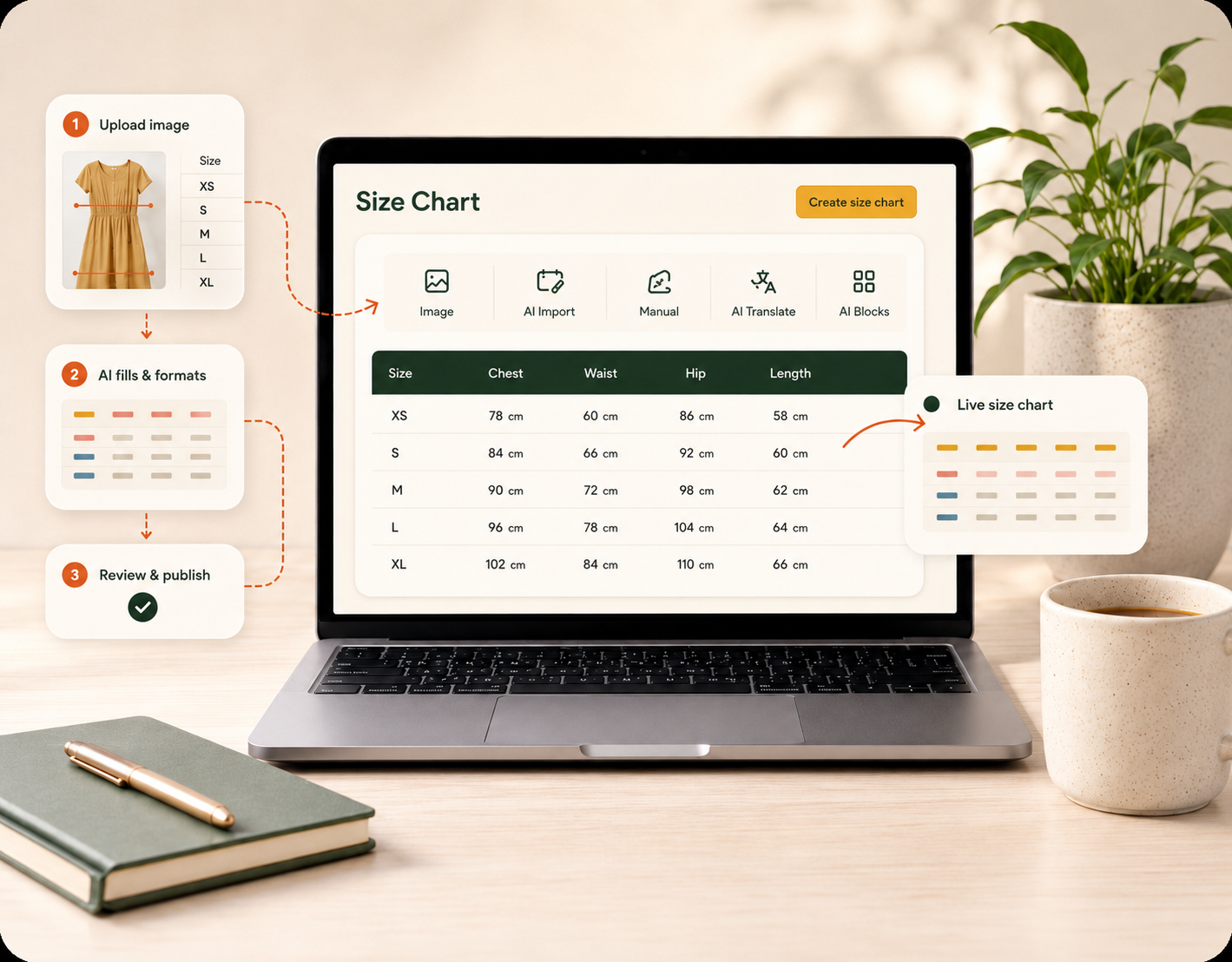
You can build a Shopify size chart in minutes: take a screenshot of the chart you already have, upload it to SmartSize, and AI rebuilds it as a live, editable chart. No retyping is needed.
Most merchants already have a size chart. It may be in a supplier PDF, a screenshot from an old app, or an image inside a product description. The numbers are not the problem. The problem is turning them into a chart that is clear, branded, and easy to update.
Rebuilding a chart by hand is slow. You retype every row, align the columns, and adjust the table styling. Then you repeat this for the next product. Because of this, many stores keep the static image.
With SmartSize you skip that work. This guide shows the full process, from an existing chart to a live size chart on your product page, in four steps.
Step 1 — Take a screenshot of your existing chart
Start with the chart you already have. Open your supplier’s size chart, your old image-based guide, or the chart from your previous app. Take a normal screenshot. A photo or a PDF also works.
You do not need to clean the image, crop it, or rebuild the table first. SmartSize’s AI reads the structure of the chart — the sizes and the measurements. A normal screenshot is enough.
Step 2 — Upload it with AI
Inside SmartSize, add the screenshot to the Build a size chart from an image panel and click upload. SmartSize’s AI reads the table, extracts every row and column, and rebuilds it as a structured, editable table. There is no retyping and no spreadsheet work.
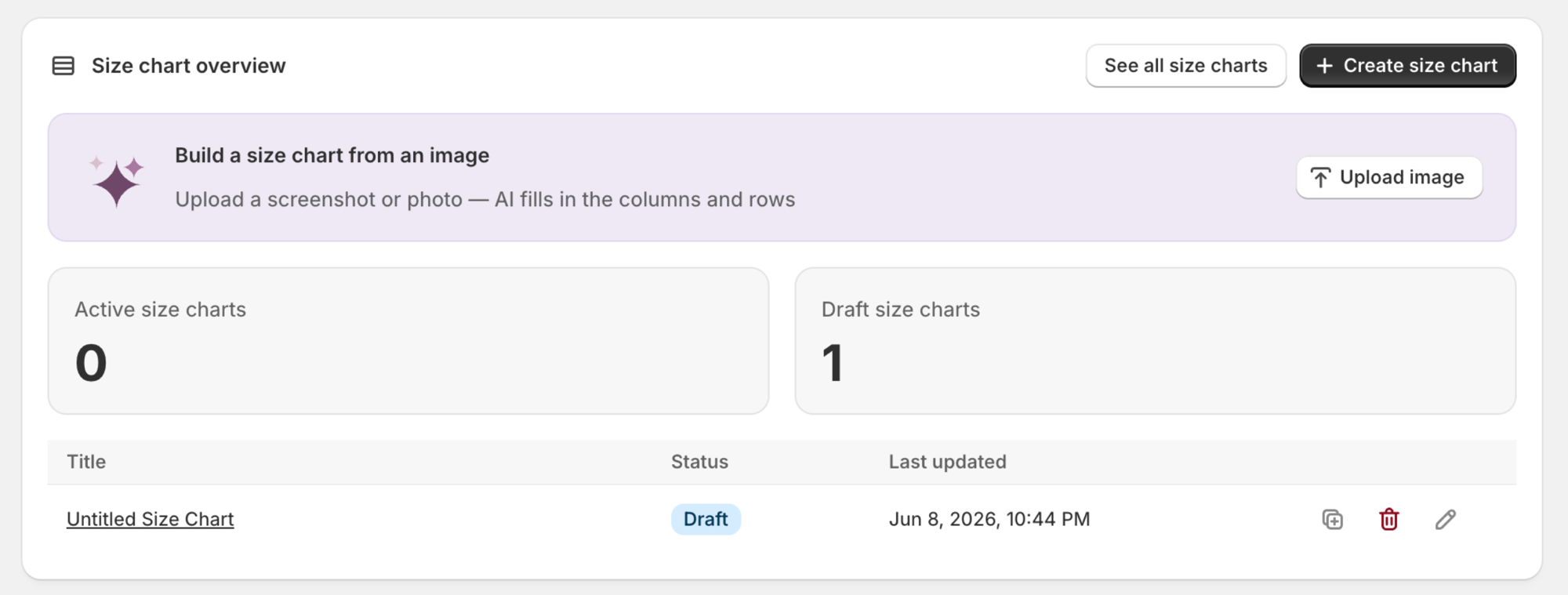
After a few seconds you have a real SmartSize table, not a flat image. Every value is editable. Every column can be converted between units. The whole chart can be translated later. This is the fastest way to replace static size information: a supplier PDF or an old screenshot becomes live content almost instantly.
Step 3 — Add the components you want
A good size chart is more than a table of numbers. After your table is imported, the modular editor lets you add everything else a shopper needs to choose their size with confidence.
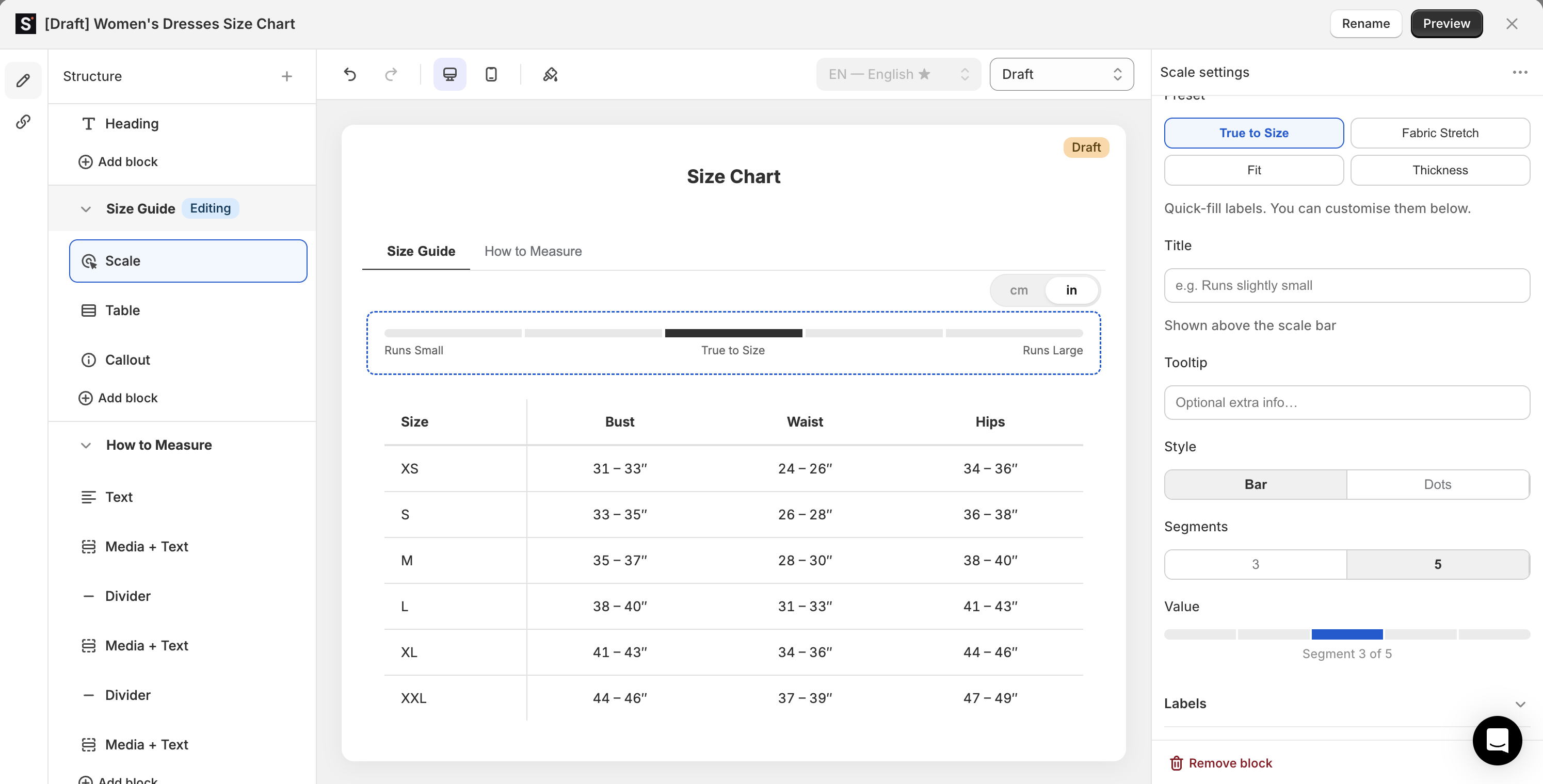
The editor works like the Shopify theme editor. It has a Structure panel of draggable blocks on the left, a live preview in the center, and per-block settings on the right. Add the blocks that fit your product:
- How-to-measure diagrams that show shoppers exactly where to place the measuring tape.
- Fit scales such as Runs Small → True to Size → Runs Large.
- Callouts for common causes of returns, for example: “Runs small — size up if you’re between sizes.”
- International sizes that map US / EU / UK / JP, plus automatic cm ↔ in and kg ↔ lbs conversion.
- Text, images, dividers, and video for material notes or measurement tutorials.
The live preview updates as you work. You can also save your styling as a reusable preset, so your next chart matches your brand in one click.
Step 4 — Link the chart to a product
A finished chart only helps if it appears in the right place. SmartSize’s product display rules control exactly where each chart appears. You can assign a chart by product, collection, product type, vendor, or tag, in any combination.
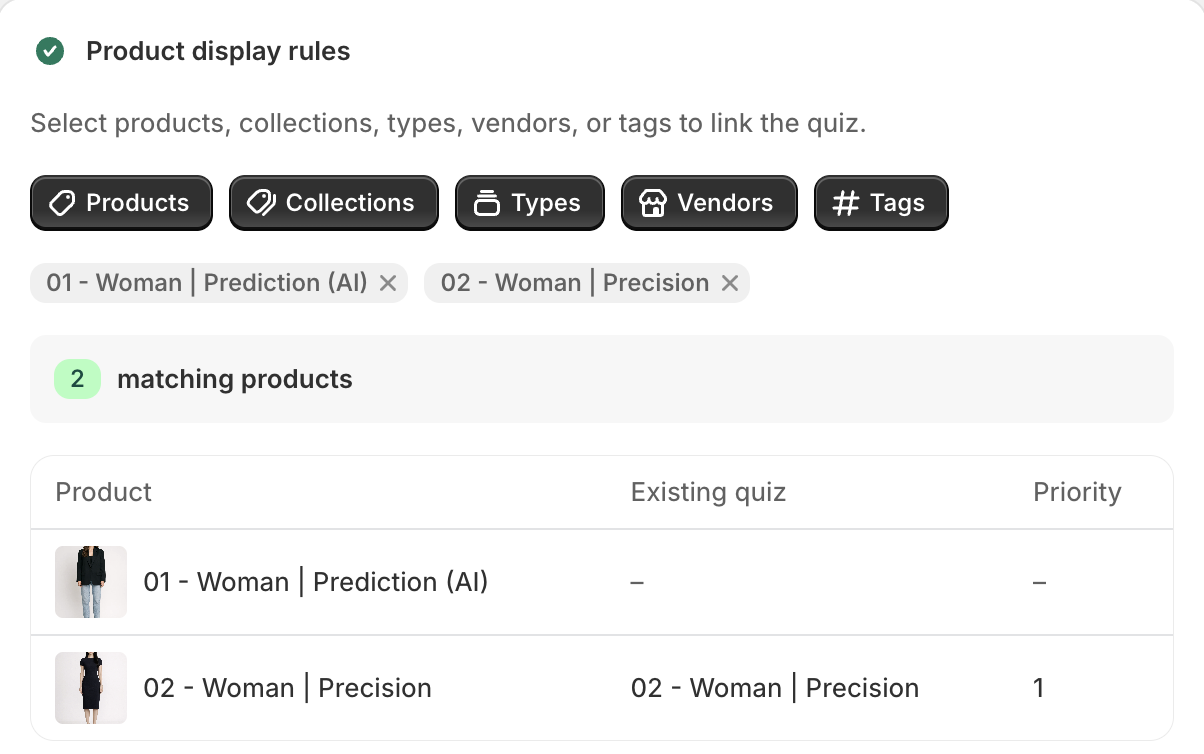
As you add filters, SmartSize shows a live matching products count and a preview table. You can see exactly which products are covered before you publish, so no product is left without a chart. Then place the Size Chart button through Shopify’s native theme editor, and the chart is live.
→ See a finished SmartSize chart live on our demo store
From screenshot to live chart: the full process
The full process has four steps:
- Screenshot your existing chart.
- Upload it and let AI rebuild it as an editable table.
- Add the blocks that answer “what size should I buy?”
- Link the chart to the right products and publish.
There is no theme code, no retyping, and no rebuilding the same chart twice. An old size chart file becomes a clear, branded, mobile-friendly size guide in minutes.
 Try SmartSize for free
Want to see everything the builder can do first? Take a tour of SmartSize size charts, or read the full Shopify size chart builder feature guide.
Questions? Reach out at [email protected].
— Helen, SmartSize support