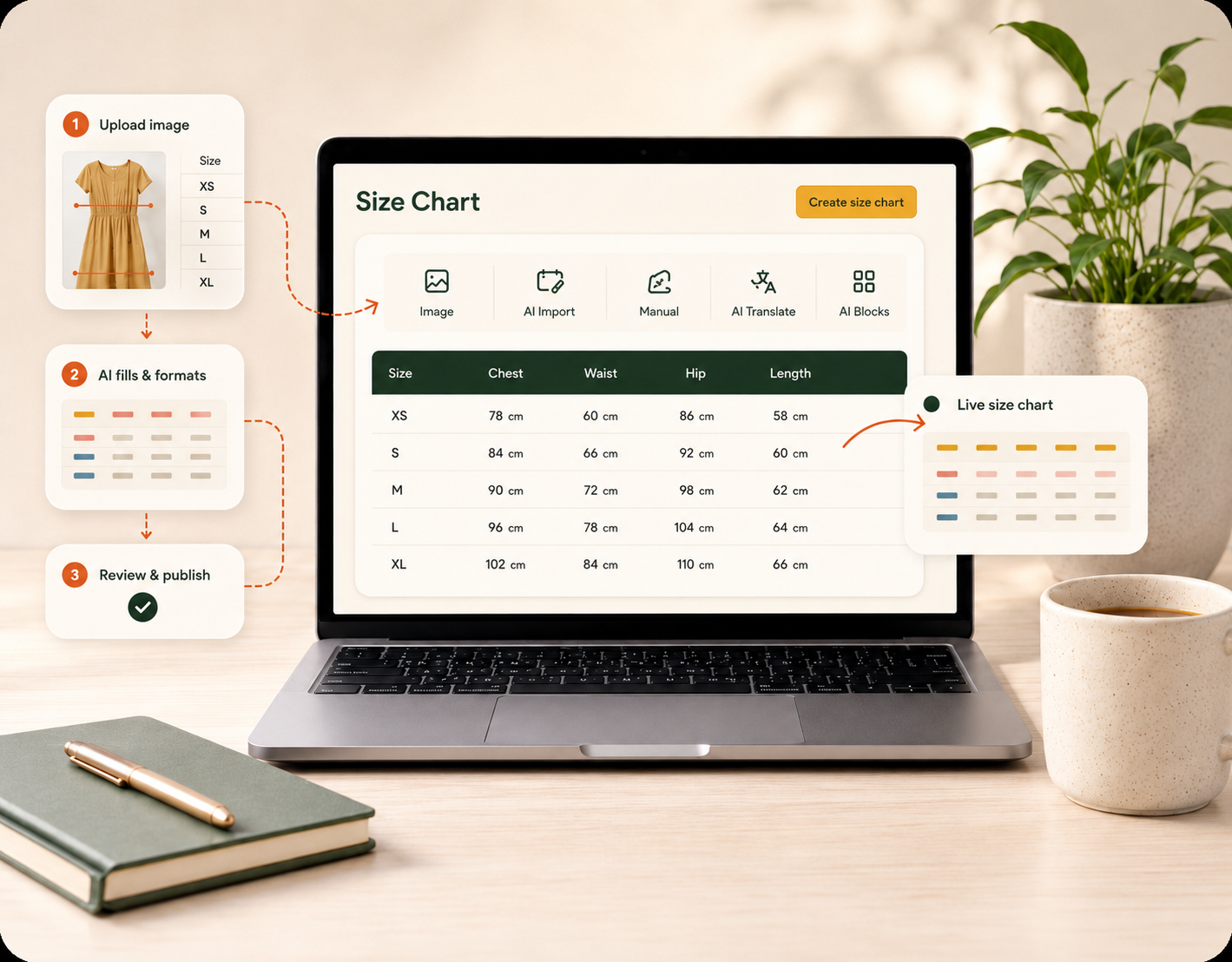
You can add a size chart in Shopify in four ways: a product description image, a size guide page, metafields with theme code, or a size chart app. A size chart answers the most important question in apparel shopping: “What size should I buy?” A clear size chart helps shoppers buy with confidence. A missing or unclear size chart causes two problems: unsure shoppers leave without buying, and shoppers who guess wrong return the product. Fit and sizing are the number-one reason shoppers return clothing bought online. Some estimates put them close to 38% of apparel returns.
This guide explains every realistic way to add a size chart in Shopify. It covers three manual methods without an app and the faster no-code app method. Each section lists the benefits and the limitations, so you can choose the right method for your store.
The four ways to add a size chart in Shopify
There are four common methods, from the fastest but most limited to the most capable:
- Add a size chart image to the product description. No app needed. The image is static and hard to read on mobile.
- Create a size guide page and link to it. No app needed. The link takes shoppers away from the product page.
- Use metafields or theme code. No app needed. This method needs a developer and can break when you update your theme.
- Use a size chart app. No code needed. It works on mobile, supports a different chart per product, and can add AI size recommendations.
The sections below explain each method step by step.
Method 1: Add a size chart image to the product description (no app)
This is the fastest way to show a size chart. Create your chart in a spreadsheet or design tool, export it as an image, and insert it into the product description.
- Open Products in your Shopify admin and select a product.
- In the Description rich-text editor, click the Insert image button.
- Upload your size chart image and save.
Good for: a single product, or a quick test to see if a size chart helps at all.
Limitations: images do not scale well on phones, where most shopping happens. The text often becomes too small to read. There is no unit switching (cm ↔ in). You must paste the same image into every product by hand. If one measurement changes, you must export and upload the image again everywhere.
Method 2: Create a size guide page and link to it (no app)
Instead of repeating an image on every product, you can build one size guide page and link to it from your products.
- Go to Online Store → Pages → Add page and build your chart (the page editor supports a basic table).
- Save and note the page URL, e.g.
/pages/size-guide. - In each product description, add a link such as “View our size guide.”
Good for: stores where one chart covers most products.
Limitations: the link takes shoppers away from the product page at the exact moment they decide to buy. This can lower your conversion rate. You also get one chart for all products. That rarely works when you sell multiple brands or categories.
Method 3: Use metafields or theme code (no app, for developers)
You can store chart data in metafields and show it in your theme with Liquid code, or add a chart block directly to your product template. This gives full control without an app.
- Define a metafield (e.g.
custom.size_chart) under Settings → Custom data. - Edit your theme’s
producttemplate to display the metafield in a popup or section. - Repeat this setup for each template that needs it.
Good for: developers who want a custom result and know Liquid.
Limitations: this method requires code. Every theme update can break it. You also have to build features that an app includes by default: mobile layout, unit conversion, multiple languages, and per-product charts. For most merchants, the maintenance cost is too high.
Method 4: Use a size chart app (the no-code way)
Most stores choose this method because it removes all the limitations above at once. A good size chart app adds a Size Chart button next to the size selector. The chart opens in a clean popup, so shoppers stay on the product page. You can assign different charts to different products without touching code.
SmartSize does this and adds features the manual methods cannot:
- AI builds the chart for you. Upload a size chart image, screenshot, or spreadsheet, and AI fills in every row and column automatically.
- Mobile-friendly by default, with automatic unit conversion (cm ↔ in, kg ↔ lbs) and international size mappings (US / EU / UK / JP).
- One-click AI translation into every storefront language.
- An optional AI fit quiz (a “find my size” recommender). It tells each shopper one confident size, so the chart becomes an active recommendation instead of a passive reference.
SmartSize installs through Shopify’s theme app extensions. There is no code, and nothing breaks when your theme updates. A free plan is available, with paid tiers on the pricing page.
→ See both the size chart and fit quiz live on our demo store
Which method should you use?
Use a size chart app if you sell more than one product or if your shoppers buy on phones. The table compares all four methods:
| Method | Code needed | Mobile-friendly | Per-product charts | Unit conversion | AI size recommendation |
|---|---|---|---|---|---|
| 1. Description image | No | ✗ | Manual | ✗ | ✗ |
| 2. Size guide page | No | Partly | ✗ | ✗ | ✗ |
| 3. Metafields / code | Yes | Depends | Manual | ✗ | ✗ |
| 4. Size chart app | No | ✓ | ✓ | ✓ | ✓ |
If you only sell one product, Method 1 is enough for now. For every other store — multiple products, multiple categories, or shoppers on phones — a size chart app is the method that scales and protects your conversion rate.
How to add a size chart with SmartSize in 3 steps
- Install SmartSize from the Shopify App Store and enable the app embed in your theme editor (one click).
- Upload your existing size chart image or spreadsheet. AI turns it into an editable chart in seconds.
- Publish. The Size Chart button appears automatically next to your size selector. You can also turn on the AI fit quiz to recommend a size to every shopper.
 Try SmartSize for free
Frequently asked questions
Adding a size chart in Shopify — FAQ
Quick answers to the most common sizing questions.
How do I add a size chart in Shopify without an app?
You have three options without an app: insert a size chart image into the product description, build a size guide page and link to it from your products, or store the chart in metafields and show it in your theme with Liquid code. Each option has trade-offs. Static images are hard to read on mobile. A linked page takes shoppers away from the product. The metafield method needs a developer and can break when you update your theme.
Can I add a size chart to Shopify for free?
Yes. The manual methods (a description image or a size guide page) are free. SmartSize also has a free plan that adds a proper popup size chart with no code. You can upgrade later for the AI fit quiz and advanced features.
Will the size chart work on mobile?
A static image often will not. It shrinks, and the text becomes unreadable. A size chart app shows a responsive, mobile-friendly popup with unit switching. This matters because most Shopify traffic comes from phones.
Can I show a different size chart for different products?
Not easily with a single description image or one linked page. A size chart app lets you assign specific charts to specific products or collections. Footwear, lingerie, and apparel can each show the right measurements.
Does a size chart actually reduce returns?
Yes. Fit and sizing are the top reason shoppers return apparel — around 38% of apparel returns by some estimates. A clear size chart, unit conversion, and an AI size recommendation help shoppers choose the right size before they buy. This is one of the most direct ways to reduce sizing returns and recover revenue.
Stop making shoppers guess their size. Add a professional size chart — and an optional AI fit finder — to your store in minutes.