SmartSize is a Shopify size chart builder. It helps shoppers answer the most important question on a product page: “What size should I buy?”
When the answer is unclear, hard to read on a phone, or in the wrong language, shoppers guess. Guessing leads to returns, support tickets, and lost trust.
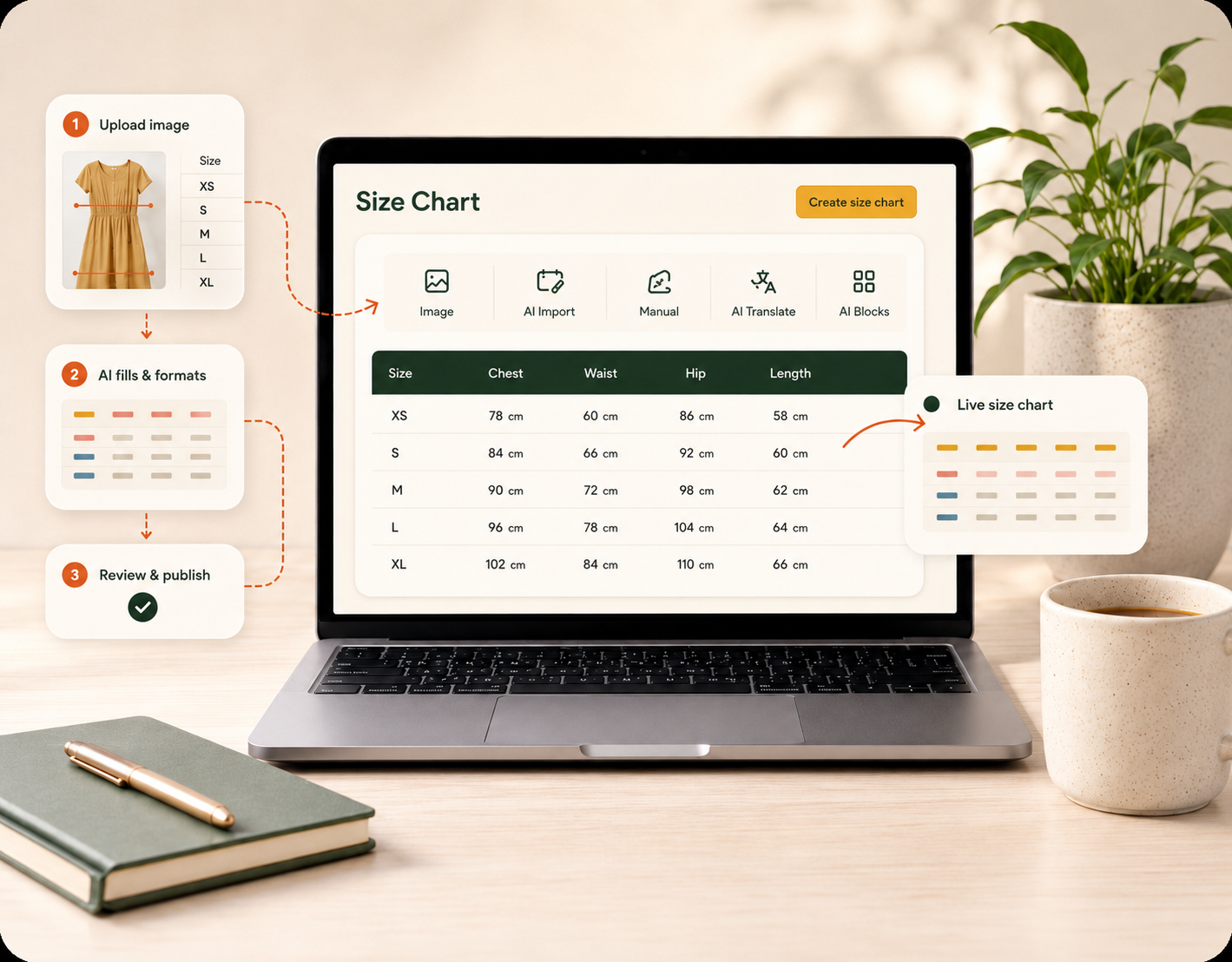
SmartSize gives shoppers a clear, branded, localized answer. It also saves merchants time. Upload a photo, screenshot, or PDF of any existing size chart, and AI rebuilds it as a live, editable chart in seconds. Or start from a template with real measurements instead of an empty table. There is no theme code, and you never rebuild the same chart twice.
This article follows the steps a merchant takes inside SmartSize:
- Build the chart from flexible blocks, not one static table.
- Style it to match the brand.
- Adapt it to each shopper — units, regions, and language.
- Connect it to the store — products, theme, and the size quiz.
- Save time with templates, AI import, and bulk import/export.
1. Why does the size chart matter?
A size chart is one of the last things a shopper checks before choosing a size. That makes it one of the most important parts of the product page. Most size chart apps treat it as a single static table.
SmartSize treats it as a small sizing hub instead. It combines a measurement table with the context shoppers need to feel sure: how to measure, fit notes like “runs small — size up,” international sizes, and a design that matches your brand.
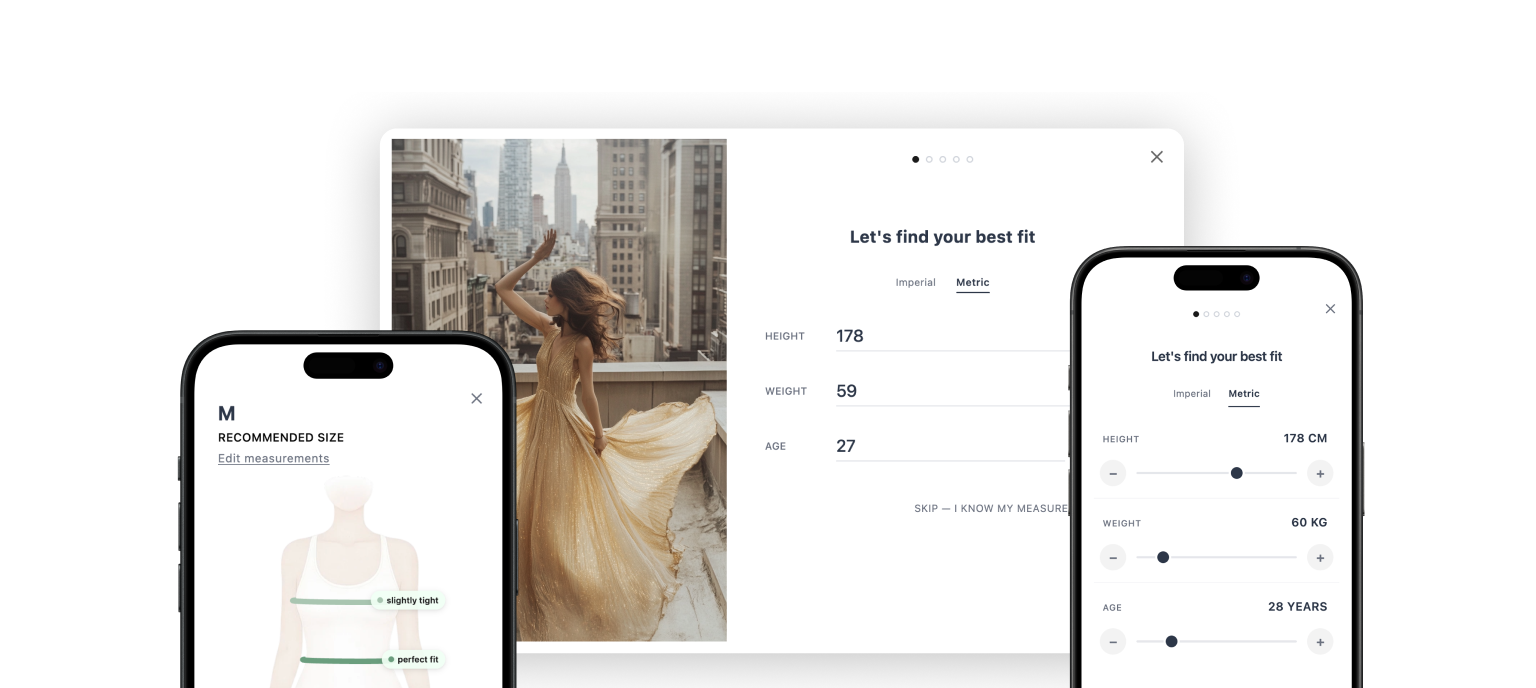
Charts are the core of SmartSize. The size quiz is the premium layer on top. Together they turn a product page from passive guidance into a clear answer. Here are the highlights. The rest of this article explains each one, and a complete feature list is at the end:
| What you get | Why it matters |
|---|---|
| AI image import | Upload a photo, screenshot, or PDF of any size chart. AI rebuilds it as a live, editable table in seconds — no retyping |
| Ready-made templates | Start from real measurements for women, men, kids, and pets instead of an empty table |
| Modular blocks | Build a full sizing hub — tables, how-to-measure diagrams, fit scales, callouts, and video, not only numbers |
| AI translations | Translate every chart into all your storefront languages automatically, then review and edit |
| Units & international sizes | Convert cm, in, mm, kg, and lbs automatically, and map US/EU/UK/JP sizes for every shopper |
| Brand-matched design | Presets, saved custom styles, and full control over tabs, tables, the popup, and the Shopify button |
| Smart placement & size quiz | Show the right chart on the right product, place it without theme code, and pair it with a size quiz |
2. How does the block editor work?
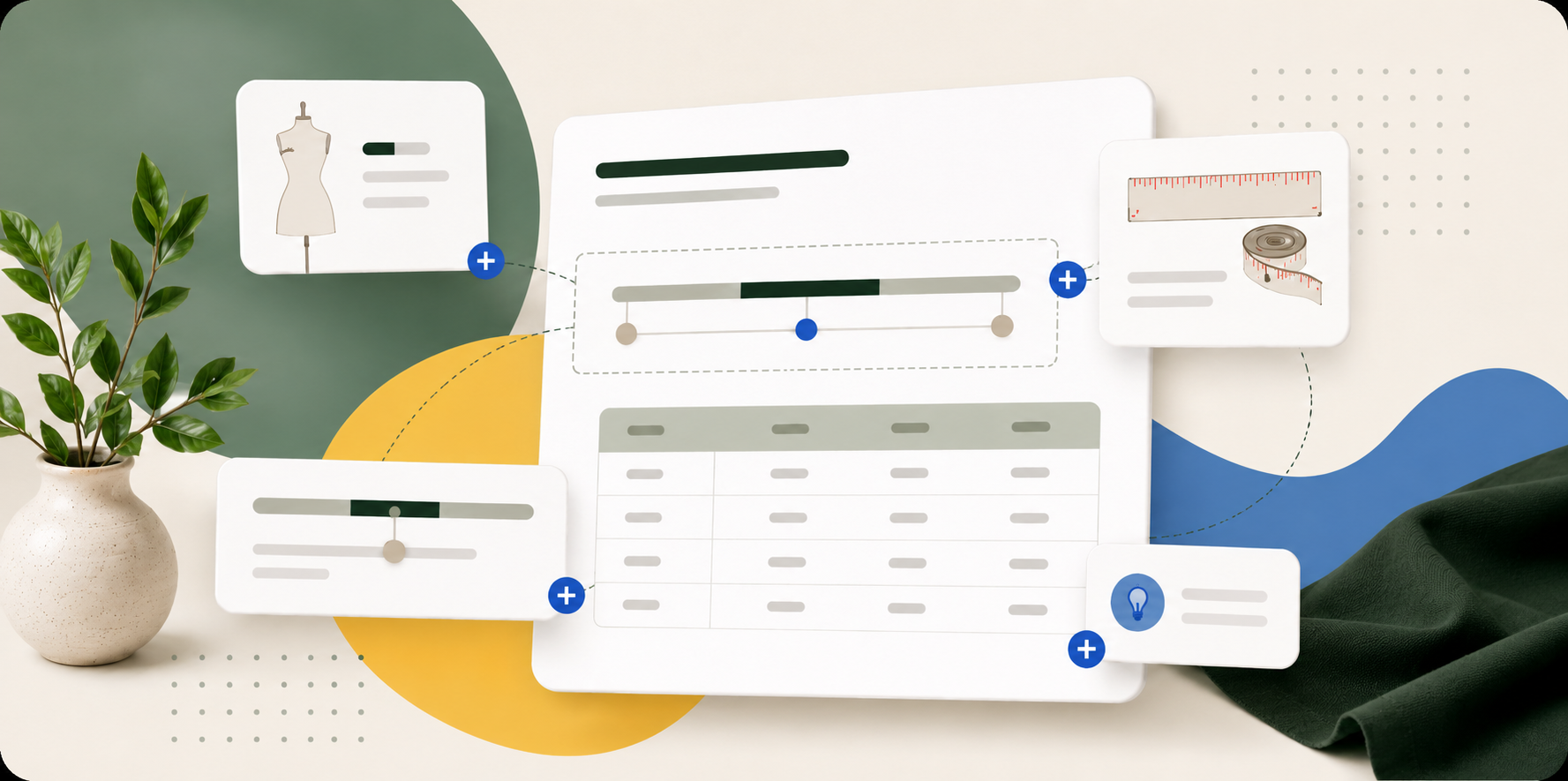
The SmartSize editor uses blocks, so merchants build a size guide as structured content instead of one fixed table. Each chart has a header zone, one or more tabs, and an ordered list of blocks inside each tab.
The editor has three working areas:
- Structure panel: the left column. It shows the header zone, tabs, and blocks.
- Canvas: the center live preview. Merchants see the chart exactly as shoppers will see it.
- Settings panel: the right column. It holds the controls for the selected block, tab, or chart.
On narrow screens, the settings panel can switch to an inline mode, so the editor stays usable with less horizontal space.
Blocks matter because size charts are rarely the same for every product. A women’s dress chart may need a bust/waist/hips table, a length guide, and how-to-measure diagrams. A pet harness chart may need neck, chest, back length, and weight guidance. A shoe chart may need a foot measurement tip and international sizes. In SmartSize, each of those pieces is its own block.

Block types
| Block type | Common use | Key controls |
|---|---|---|
| Heading | Section titles such as “How to Measure” | Size, alignment, color, margin |
| Table | Measurement rows and columns | Columns, rows, unit conversion, table style, sticky first column |
| AI size table | Generate a table from an uploaded size chart image | Image upload, AI extraction, fully editable rows and columns |
| Text | Notes, fit guidance, material instructions | Rich text, alignment, font size, color, margin |
| Callout | Important notes such as “Runs small — size up” | Info/warning/tip tone, optional icon, margin |
| Image | How-to-measure diagrams or product fit images | Width, alignment, alt text, link, per-corner radius, margin |
| Media + Text | Image and explanation side by side | Image left/right, vertical alignment, text size, image radius, margin |
| Divider | Visual separation between sections | Solid/dashed/dotted, thickness, color, width, margin |
| Scale | Fit scale such as Runs Small → True to Size → Runs Large | 3 or 5 segments, bar or dots, labels, active value |
| Video | YouTube or Vimeo measurement tutorials | Provider URL, aspect ratio, margin |
A block-based size guide can answer questions a basic table cannot: Where should I measure my chest? Does this item run small? Should I size up if I am between sizes? What does this size mean in EU or UK? Is the model wearing a relaxed or fitted size? This extra context reduces sizing doubt and the support tickets it creates.
The Add block menu is also where merchants find the AI size table. Open the menu, choose Generate size table from image, and upload a photo, screenshot, or PDF of an existing chart. The SmartSize AI agent reads the table and adds a fully editable table block to the chart. (More on this in section 6.)
Merchants can also create a reusable pattern — for example, Table → Fit Scale → How to Measure → Callout — and use it across multiple charts.
Tables in detail
The table block is the core of most charts. Merchants can name columns anything they need: Size, Chest, Bust, Waist, Hips, Neck, Back Length, Weight, Foot Length, Inseam, Sleeve, Shoulder, or brand-specific labels. Values are stored as free-form text, so merchants are not locked into one measurement system.
Table style controls cover the details that make a size chart look designed:
- Header background and text color.
- Striped rows on or off, with a custom stripe color.
- Border style: none, horizontal lines, or full grid, with a custom border color.
- Font size from
xxstoxxl. - Cell padding: compact, default, or spacious.
- Sticky first column on or off.
- Column alignment: left, center, or right.
The storefront renderer keeps tables readable on narrow screens. Tables can scroll horizontally, the first column can stay sticky, and range values can stack vertically so numbers do not overlap.

3. How do you style the size chart to match your brand?
SmartSize gives merchants detailed design controls for the chart, tabs, blocks, tables, popup, and Shopify button. The goal is a size chart that looks like part of the store, not a generic third-party widget.
Style presets
There are four built-in style presets:
| Preset | Visual direction | Best for |
|---|---|---|
| Clean | Minimal and spacious | Modern stores that want a quiet, editorial chart |
| Bold | High-contrast dark headers | Brands that want strong table hierarchy |
| Classic | Traditional striped rows | Familiar retail size guides |
| Soft | Warm tones with a rounded feel | Lifestyle, kidswear, lingerie, and softer brand systems |
Style presets set the tab bar and block defaults: tab variants, alignment, active colors, heading style, text alignment, divider styling, table style, scale symbol style, and media-text defaults.
Merchants can also save the current chart styling as a custom preset and reuse it on future charts.

Tabs, spacing, and corners
Tabs support four variants (underline, pills, boxed, minimal), four alignments (left, center, right, stretch), font sizes from xxs to xxl, a bold-active toggle, a custom active color, and an optional divider line.
Most blocks support custom margins in pixels, in three modes:
- All sides: one value for top, right, bottom, and left.
- Axis: one value for vertical spacing, one for horizontal.
- Individual sides: separate top, right, bottom, and left values.
Margins support 0–200px. Defaults are small on purpose, so merchants can add space where it helps without adjusting every block.
Image blocks and media-image blocks support per-corner border radius: all corners together, top and bottom pairs, or each corner individually. The size chart button supports a 0–32px corner radius. The popup has its own corner radius too, so the modal can look sharp, softly rounded, or fully matched to the store’s UI.
The popup
The size chart popup is designed to read well on desktop and mobile. It uses a sticky header area, a scrollable body, responsive side padding, and a centered content area, so tables and guidance stay easy to scan on any screen.
Merchants can control the popup position (centered, left, or right on desktop), overlay darkness (0–80%), and overlay blur (0–24px). On mobile, SmartSize supports full-height or content-height layouts, depending on the merchant’s preference.


4. How does the chart adapt to each shopper?
A chart that is right for the merchant is not always right for the shopper. A US shopper wants inches. A French shopper wants centimeters and French text. A Japanese shopper wants JP sizing next to the store’s own labels. SmartSize handles all three from one chart.
Unit conversion
SmartSize converts units automatically. Merchants mark individual table columns as length or weight columns. Each column has a source unit, and the storefront popup shows the shopper’s preferred unit system.
Supported source units: cm, in, mm, kg, lbs. Supported measurement types: length and weight. One chart can convert chest measurements from centimeters to inches and weight guidance from kilograms to pounds.
Rounding is configurable:
| Rounding option | Use case |
|---|---|
| Whole | Clean charts with no decimals |
| Half | Apparel ranges where half units matter |
| 1 decimal place | Balanced precision for most conversions |
| 2 decimal places | More exact technical charts |
The popup remembers the shopper’s unit preference. If a visitor switches to imperial once, SmartSize keeps that choice for the next chart they open.

International sizes
International sizes let merchants add region-based size labels to a table, such as US, EU, UK, JP, or another region the store uses. Shoppers choose the region from a dropdown in the table header.
This is useful when the same product is sold in countries where size labels mean different things. A shoe might be US 8, EU 39, UK 6, and JP 25. SmartSize provides default mappings, and merchants can override values per chart. If a merchant has already adjusted a mapping in one chart, they can import it into another.
Multi-language charts, translated with AI
SmartSize translates chart content into every published storefront language with AI. The chart has a primary language. The SmartSize AI agent generates a translated version for each other language, so merchants do not have to write or paste translations by hand. Every translation stays fully editable afterward.
Translation works per block, so SmartSize tracks whether each block’s AI translation still matches the primary chart. Merchants can:
- Sync with AI: let the AI agent translate missing or out-of-sync blocks automatically.
- Accept as-is: mark content as good enough without changing it.
- Fix manually: edit translated content by hand.
Manual edits are protected. SmartSize does not overwrite hand-edited translations on the next AI sync unless the merchant chooses to include them.
The editor shows outdated content clearly. A banner appears above the canvas, badges appear in the structure panel, and the toolbar shows a sync count when translations need attention. The chart is not translated once and forgotten — it stays up to date as the primary content changes.

5. How does the chart connect to your Shopify store?
A finished chart still has to appear in the right place on the right product. Three parts of SmartSize handle this: product display rules, the Shopify theme editor integration, and the optional connection to a size quiz.
Product display rules
Product display rules decide where each SmartSize chart appears on the storefront. A merchant can assign a chart using any combination of five Shopify product filters:
- Products
- Collections
- Product types
- Vendors
- Tags
The match condition controls how multiple filters combine. ALL means every filter must match. ANY means at least one must match.
Priority resolves overlap. If more than one active chart matches the same product, the chart with the lower priority number wins. Ties go to the most recently updated chart.
The editor shows a live count of matching products and a preview table, so merchants can find mistakes before publishing. A store with many collections, vendors, and tags can assign charts at scale without guessing which products are covered.
The Shopify theme editor
SmartSize works inside the Shopify theme editor, so merchants can place and style the size chart button without touching theme code. Merchants turn on the size chart extension once, then add the size chart button to the product template in Shopify’s normal theme editor.
Button controls include:
- Button label and optional icon.
- Link style or full button style.
- Text and background color.
- Corner radius from 0px to 32px.
- Margins from 0px to 100px on each side.
- Separate desktop and mobile alignment (left, center, right).
The icon set includes hanger, ruler, and table-style icons in default, black, brown, grey, and pink variants — or no icon at all.
Merchants can also choose how the button appears on the page:
| Placement method | Difficulty | What it does |
|---|---|---|
| Automatic placement | None | Adds the button beside the size selector automatically when possible |
| Floating button | None | Keeps a size chart button visible while shoppers scroll |
| Drag & drop placement | Easy | Lets merchants place the size chart block anywhere in the Shopify theme editor |
| Custom placement | Advanced | Attaches the button to a CSS selector on the page |
| Custom integration | Developer | Lets a custom UI trigger the SmartSize size chart API |
SmartSize hides the button on products that are not linked to an active chart, so shoppers only see sizing guidance where it applies.

Connecting a chart to a size quiz
A SmartSize size chart can be connected to a SmartSize size quiz, so shoppers can move from reference information to a personal recommendation. A connected chart and quiz share one set of product display rules, while their content and settings stay independent.
When connected:
- The chart and quiz form a one-to-one pair.
- Product display rules sync between the two.
- The chart can be opened from the quiz recommendation screen.
- Disconnecting does not delete anything.
- Removing every product rule sets both sides back to Draft, so neither stays active but invisible.
This keeps the merchant workflow simple. A store can start with size charts, then add the size quiz later without rebuilding product assignments.
6. How do you build charts faster?
Everything above describes what you can build. This section is about how little you have to build yourself. SmartSize cuts setup time with AI-powered chart import, real templates, reusable styles, and bulk migration tools. Merchants almost never start from an empty table, and they never rebuild the same chart twice.
AI image import: turn a size chart photo into an editable chart
The biggest time saver is AI image import: upload a photo, screenshot, or PDF of an existing size chart, and the SmartSize AI agent reads it and rebuilds it as a structured, editable table. No retyping rows. No rebuilding columns by hand.
Merchants find it where they already work — inside the editor. Open the Add block menu, choose the AI size table option, and upload the image. SmartSize analyzes the table structure, extracts the sizes and measurements, and adds a fully editable table block to the chart. Merchants can refine the result in chat, then adjust any value, column, or style afterward like any other block.
This is the fastest way to replace static size information. A supplier PDF, an old image-based guide, or a screenshot from a previous app becomes live SmartSize content in seconds. Because the output is a normal table block, it stays editable, translatable, and convertible between units like everything else in the chart.

Templates
When there is no chart to import, SmartSize size chart templates give merchants a structured starting point with real measurements, sizing instructions, and how-to-measure guidance. The template picker is a four-step flow: choose the audience, choose the product type, choose a style, and name the chart.
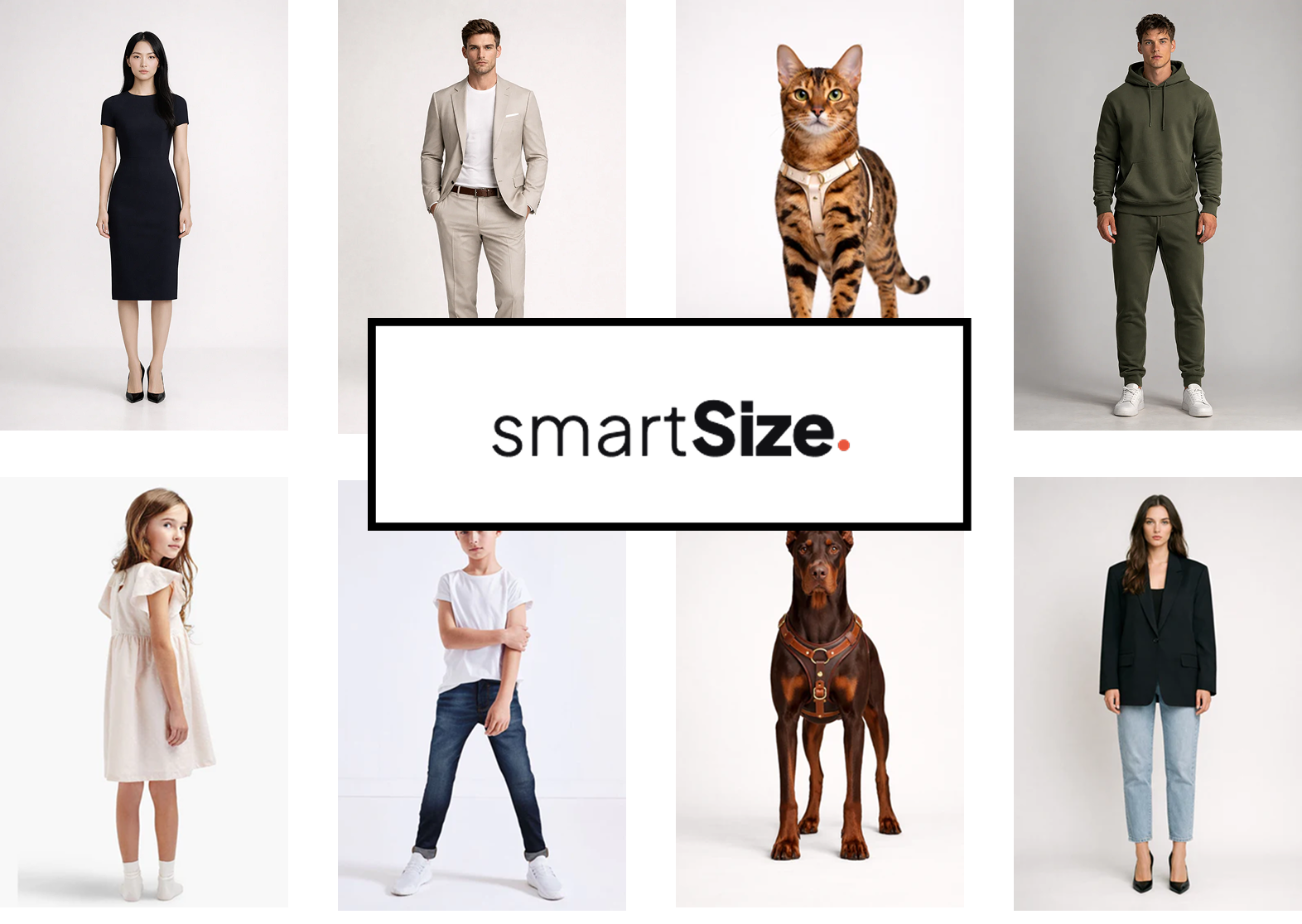
Audiences supported: Women, Men, Unisex, Girls, Boys, Dogs, Cats.
Product types covered: tops, shirts, pants, dresses, shoes, swimwear, underwear, pet clothing, harnesses, boots, and blank charts for custom setups.
The values are not random filler. The template methodology cross-references standards and major brand charts, then uses consistent canonical values across shared body measurements. For example, women’s bust values stay consistent across women’s tops, dresses, shirts, swimwear, and underwear templates unless a garment-specific measurement needs to change.
This gives merchants a faster way to create a clothing size chart, shoe size guide, kids size chart, or pet size guide without starting from an empty table. A merchant can still edit everything after choosing a template. Templates are a starting point, not a locked system.

JSON export and bulk migration
Merchants can export an existing chart as JSON, keep it as a backup, or move it into another workflow. The exported JSON keeps the full structured chart content, so a chart stays editable instead of becoming another static image or spreadsheet.
SmartSize also supports JSON import for structured size charts. A merchant can export a chart, save it, and bring it back into SmartSize without rebuilding every block, table, and setting by hand.
For stores moving from another size chart app, SmartSize now includes a bulk import workflow for structured CSV exports. Merchants can upload existing size chart files. SmartSize reads the rows, merges duplicate cloned charts, creates new charts as Draft, and keeps the merchant’s template styling, guidance blocks, popup settings, and product links where available.
This matters during migration. Instead of rebuilding a large chart library one product at a time, a merchant can bring existing sizing data into SmartSize, review everything in Draft, then publish when the charts are ready.
For merchants doing manual conversion work today, we also wrote a guide on converting garment measurements to body measurements with ChatGPT.
The fastest path from zero to a live chart
- Choose an audience such as Women, Men, Girls, Boys, Dogs, or Cats.
- Choose a product type such as tops, pants, dresses, shoes, harnesses, or a blank chart.
- Choose a style preset such as Clean, Bold, Classic, or Soft.
- Name the chart.
- Edit blocks, tables, images, and text.
- Assign the chart to products, collections, types, vendors, or tags.
- Publish and place the button through Shopify.
The complete feature list
Everything the SmartSize Shopify size chart builder includes, in one place:
| Feature | What it does | Why it matters |
|---|---|---|
| Modular blocks | Build charts from headings, tables, text, images, videos, callouts, scales, dividers, and media + text blocks | Merchants can explain fit, not only show numbers |
| AI image import | Upload a photo, screenshot, or PDF of any size chart and let the SmartSize AI agent extract it into an editable table | Turn an existing chart into structured, editable content in seconds — no manual retyping |
| Templates | Start from real measurements for women, men, kids, and pets across tops, dresses, shoes, harnesses, and more | A faster way to a finished chart than an empty table |
| Header zone | Add always-visible content above the tabs | Key guidance stays visible across the whole chart |
| Tabs | Separate Size Guide, How to Measure, International Sizes, fabric notes, or fit guidance | Shoppers scan faster and product pages stay cleaner |
| Style presets | Apply Clean, Bold, Classic, or Soft styling | A chart can look polished in one click |
| Custom styles | Save and reuse the current styling | Stores can keep every chart on-brand |
| Unit conversion | Convert cm, in, mm, kg, and lbs by column | International shoppers do not need to do manual math |
| International sizes | Show region mappings such as US, EU, UK, and JP | Global stores can explain equivalent sizes clearly |
| AI translations | Translate chart content into every storefront language with AI, then review and refine | Shoppers read sizing in their own language without manual translation work |
| Product display rules | Assign charts by product, collection, type, vendor, and tag | One chart can cover a category without manual duplication |
| Theme editor controls | Place and style the size chart button through Shopify’s native workflow | Merchants keep control inside Shopify |
| Popup controls | Adjust position, overlay, blur, radius, and mobile behavior | The size chart popup can fit the storefront design |
| Connected quiz option | Pair a chart with a SmartSize size quiz | Merchants can move from passive guidance to active recommendations |
| Bulk import and export | Import existing chart libraries and export structured chart JSON | Migration, backups, and multi-store setup become faster |
7. Summary
A size chart is not a small extra on a product page. It is one of the last pieces of information a shopper checks before choosing a size, and one of the most direct ways a store can win or lose that purchase.
The SmartSize Shopify size chart builder is built for that moment. Modular blocks, AI image import, AI translations into every storefront language, real templates, detailed design controls, automatic unit conversion, international size mapping, bulk import/export, product display rules, and Shopify theme editor placement — all in one editor.
If your store sells size-dependent products, your size chart should do more than list numbers. It should help shoppers feel confident enough to buy the right size the first time.
→ See every feature live on our demo store
 Try SmartSize for free
Want to compare plans first? See SmartSize pricing or read our full SmartSize size recommender guide.
Questions? Reach out at [email protected].
— Philip, co-founder of SmartSize